-
[iOS] CollectionView로 CardList 만들기iOS 2023. 9. 28. 20:09
CollectionView로 카드 형태를 어떻게 구현할까?
→ CollectionView를 추가하는 방법조차 모른다면 아래 블로그 먼저 참고해주고 와주세용~!
iOS 프로그래밍: 컬렉션 뷰 (Swift, 스토리보드) – 컬렉션 뷰 추가, 커스텀 셀 작성 - BGSMM
컬렉션 뷰(Collection View)란 위의 그림에서 볼 수 있듯이 테이블처럼 일정한 가로 세로 개수를 가진 목록 오브젝트를 뜻합니다. 이 테이블 뷰를 생성하는 방법을 스위프트(Swift), 스토리보드(Storyboa
yoonbumtae.com
CollectionView생성 방법을 익혔다면, 아래처럼 카드 리스트를 구현해보자!
위와 같은 카드형태를 구현하는 방법을 알아보자!

1. StoryBorad
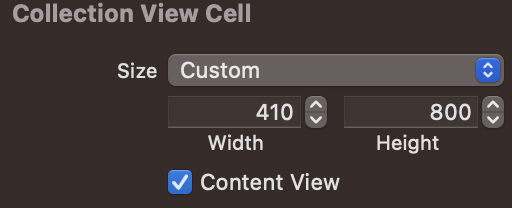
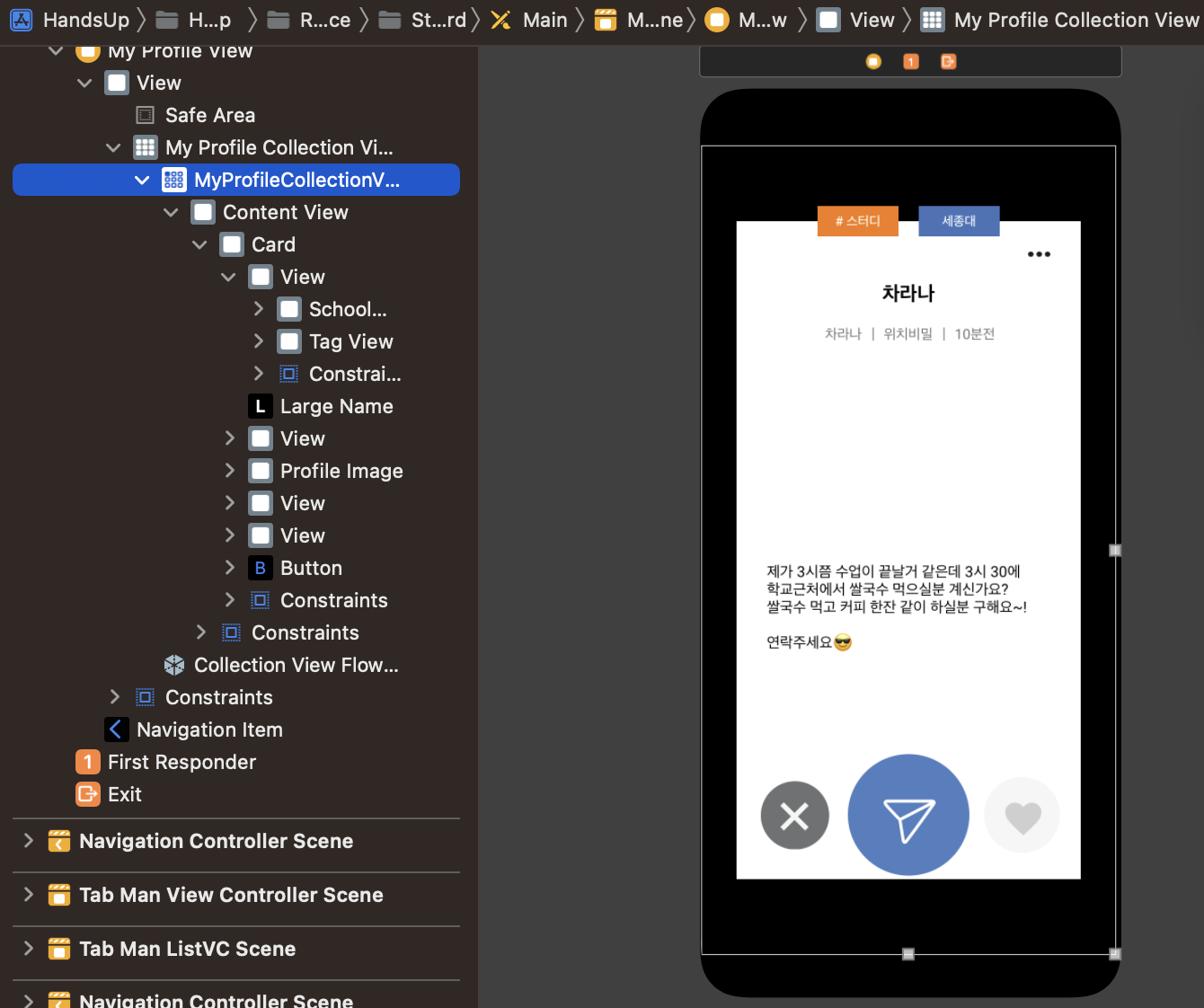
: UIKit을 이용해서 아래와 같은 구조로 UI를 구성하자. 나는 Cell의 크기를 410, 800으로 지정해주었다!
전체적인 구조는 다음과 같다!
cf) 만약, 간단하게 양 옆 사이드 카드가 보이지 않고, 하나씩만 나오게 하고 싶다면 CollectionView를 클릭해서 아래처럼 조정해주면 된다! Paging을 통해 카드 하나씩 끊어주는 효과를 주고, indicator를 취소하여, 하단에 나오는 스크롤을 없애주면 된다!
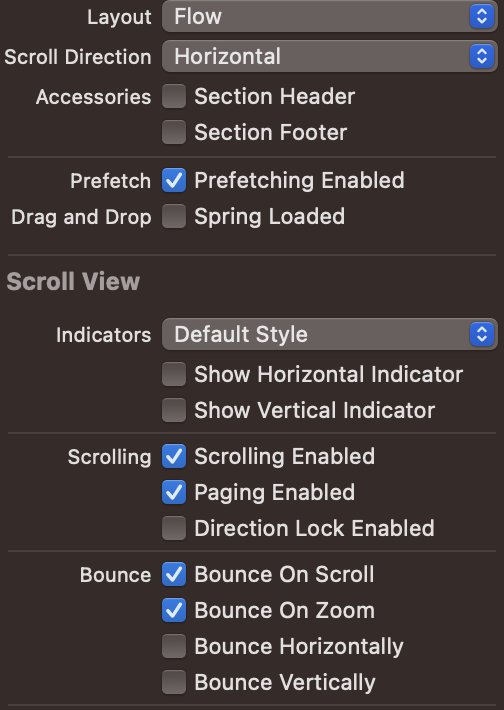
이렇게 지정해주고, ViewDidLoad()에 아래처럼 지정해주면 이미지와 같은 모양이 나온다!
let flowLayout = UICollectionViewFlowLayout()
flowLayout.scrollDirection = .horizontal
flowLayout.minimumLineSpacing = 0 // cell사이의 간격 설정
MyProfileCollectionView.collectionViewLayout = flowLayout
MyProfileCollectionView.backgroundColor = .none
아래는 카드가 한장씩 나오는데, 양 옆 사이드가 안나오도록 지정한 것이다!

https://ios-development.tistory.com/632
[iOS - swift] 2. CollectionView (컬렉션 뷰) - UICollectionViewFlowLayout을 이용한 CarouselView (수평 스크롤 뷰)
cf) ScrollView + StackView를 이용한 수평 스크롤 뷰: https://ios-development.tistory.com/617 [iOS - swift] UI 컴포넌트 - 수평 스크롤 뷰 (ScrollView + StackView) cf) collectionView를 이용한 수평 스크롤 뷰: https://ios-developmen
ios-development.tistory.com
이렇게 하나씩만 나오게 지정해주고 싶으면? 아래 코드를 추가해주면 된다!
extension MyProfileView: UICollectionViewDelegateFlowLayout {
    func collectionView(_ collectionView: UICollectionView, layout collectionViewLayout: UICollectionViewLayout, sizeForItemAt indexPath: IndexPath) -> CGSize {
        return CGSize(width: collectionView.frame.width, height: collectionView.frame.height)
    }
}
2. orthogonalScrollingBehavior
하지만 나는 아래 블로그들을 참고해서 코드로 구현했다!
https://applecider2020.tistory.com/39
[CollectionView] Section마다 다른 Scroll Direction 설정하기, Carousel Paging 구현하기 (feat. AppStore) - orthogonalS
아래의 AppStore처럼 화면을 구현하려면 어떻게 할까? 일반적인 E-commerce 앱에서도 "상품 배너"와 "상품 목록" 화면을 이런 형태로 구현한 것을 자주 볼 수 있다. 화면을 살펴보면 ✅ 맨 위의 Section은
applecider2020.tistory.com
https://ios-development.tistory.com/948
[iOS - swift] 4. UICollectionViewCompositionalLayout - 개념 (orthogonalScrollingBehavior, 수평 스크롤, visibleItemsInval
1. UICollectionViewCompositionalLayout - 개념 (section, group, item) 2. UICollectionViewCompositionalLayout - 개념 SupplementaryView, Header, Footer) 3. UICollectionViewCompositionalLayout - 개념 (DecorationView, Badge, NSCollectionLayoutAnchor) 4. U
ios-development.tistory.com
orthogonalScrollingBehavior를 이용했고, 양 옆으로 다른 item이 보이도록 하고 싶어서, item의 feactionWitdth는 1.0으로, group의 factionalWidth를 0.9정도로 설정했다!
enum SectionKind: Int, CaseIterable {
    case continuous, continuousGroupLeadingBoundary, paging, groupPaging, groupPagingCentered, none

    // orthogonalScrollingBehavior 종류
    func orthogonalScrollingBehavior() -> UICollectionLayoutSectionOrthogonalScrollingBehavior {
        switch self {
        case .none:
            return UICollectionLayoutSectionOrthogonalScrollingBehavior.none
        case .continuous:
            return UICollectionLayoutSectionOrthogonalScrollingBehavior.continuous
        case .continuousGroupLeadingBoundary:
            return UICollectionLayoutSectionOrthogonalScrollingBehavior.continuousGroupLeadingBoundary
        case .paging:
            return UICollectionLayoutSectionOrthogonalScrollingBehavior.paging
        case .groupPaging:
            return UICollectionLayoutSectionOrthogonalScrollingBehavior.groupPaging
        case .groupPagingCentered:
            return UICollectionLayoutSectionOrthogonalScrollingBehavior.groupPagingCentered
        }
    }
}

func createLayout() -> UICollectionViewLayout {
    let config = UICollectionViewCompositionalLayoutConfiguration()
    config.interSectionSpacing = 20

    // 매개변수 sectionProvider, configuration
    let layout = UICollectionViewCompositionalLayout(sectionProvider: {
        (sectionIndex: Int, layoutEnvironment: NSCollectionLayoutEnvironment) -> NSCollectionLayoutSection? in
        guard let sectionKind = SectionKind(rawValue: sectionIndex) else { fatalError("unknown section kind") }

        // 양옆으로 다른 item이 보이게!
        // item의 fractionalWidth는 1.0, group의 fractionalWidth는 0.9정도로 설정하고,
        // item의 contentInsets을 주면 됨
        let leadingItem = NSCollectionLayoutItem(layoutSize: NSCollectionLayoutSize(
            widthDimension: .fractionalWidth(1.0), heightDimension: .fractionalHeight(1.0)))
        leadingItem.contentInsets = NSDirectionalEdgeInsets(top: 0, leading: 2, bottom: 0, trailing: 2)

        // group의 width를 .fractionalWidth(0.9)정도로 주면 양옆으로 다른 item 보이도록 (centerPaging)
        let containerGroup = NSCollectionLayoutGroup.horizontal(
            layoutSize: NSCollectionLayoutSize(widthDimension: .fractionalWidth(0.93),
                                               heightDimension: .fractionalHeight(1.0)),
            subitems: [leadingItem])
        let section = NSCollectionLayoutSection(group: containerGroup)
        // scroll direction 설정
        section.orthogonalScrollingBehavior = .groupPagingCentered

        return section
    }, configuration: config)
//    })
    return layout
}
: 그리고 카드가 한장씩 나오게 하는 효과를 주기 위해서, continuous가 아닌, groupPagingCentered를 이용하여 한장씩 가운데로 오도록 조정했다!
'iOS' 카테고리의 다른 글
[iOS] String 문자열 자르기! (0) 2023.09.28 [iOS] Delegate를 이용한 데이터 전달 (0) 2023.09.28 [iOS] Snapkit을 이용한 UI 구성 (0) 2023.09.28 [iOS] 알림창(UIAlertController) 색상 변경 (0) 2023.09.28 [iOS] TextField 글자수를 제한해보자! (0) 2023.09.28